
Asterics AAC – Installation as an app under Windows
Asterics AAC is a cross-platform web communicator (webapp), which means that it always works on the basis of a web browser with the advantage that it stores all the data on the device we are using (computer, tablet or smartphone).
This advantage allows offline operation (without Internet connection) after the first connection and initial data download. We also have the possibility of installing it as if it were a Windows application (although it is still a webapp), so its operation will be the same as that of any other application that we have installed in our computer. This offers as an additional advantage the visualization in an independent window, in full screen and without the browser being seen (as if it were another Windows application).
In this tutorial, we are going to explain how to install Asterics AAC on windows with Microsoft Edge and with Google Chrome.
1 – Installation with Microsoft Edge
To install Asterics AAC as if it were a Windows application from Microsoft Edge, we open a tab in the browser and enter the Asterics AAC web page.
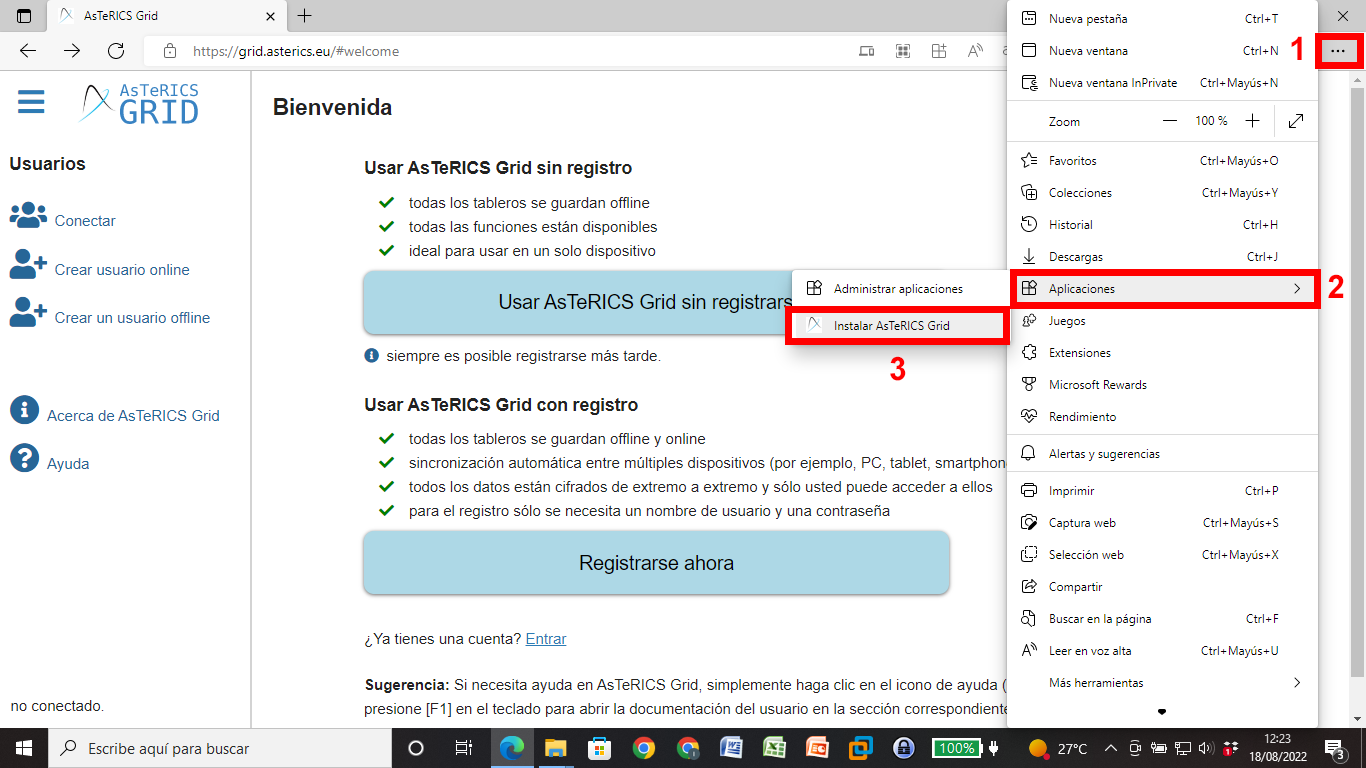
Once the Asterics AAC website is open in Microsoft Edge, click on the Options button (1), Applications (2) and Install Asterics AAC (3).
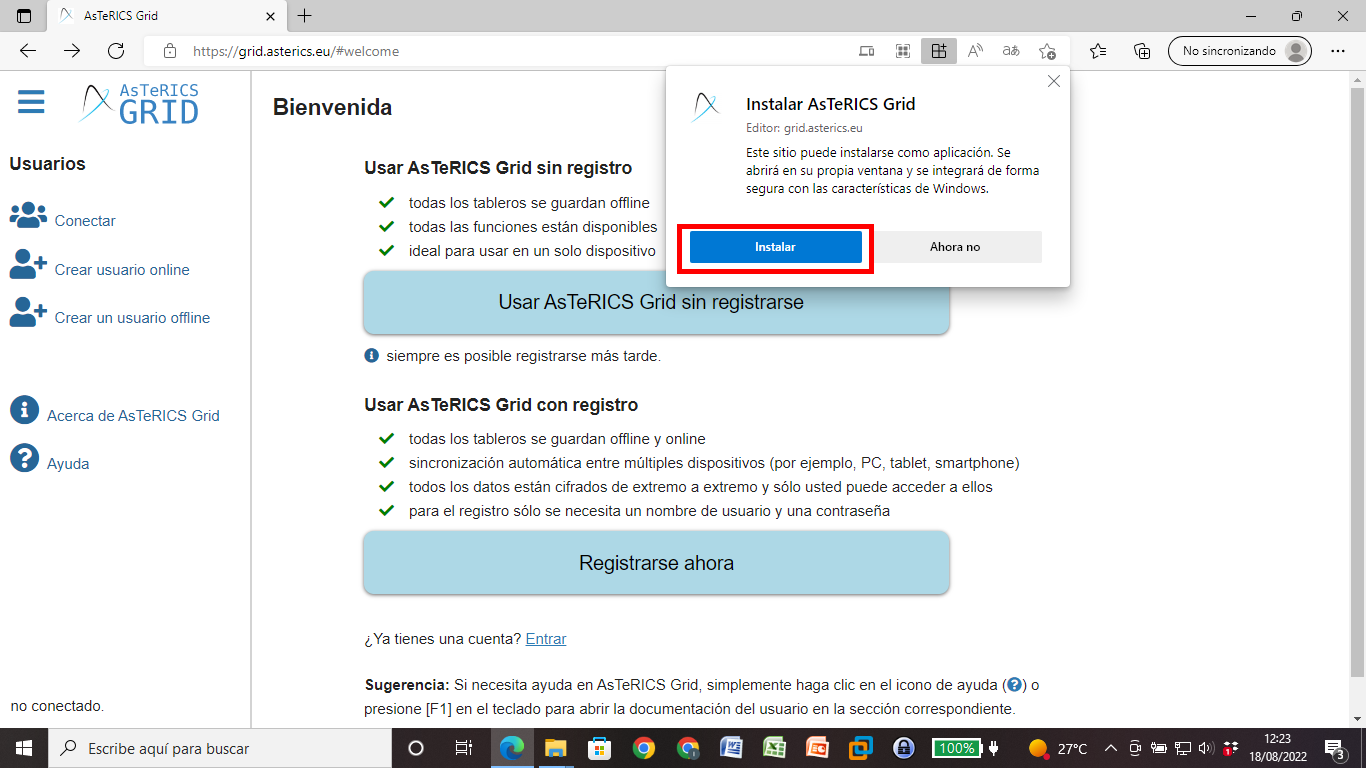
Then click on Install.
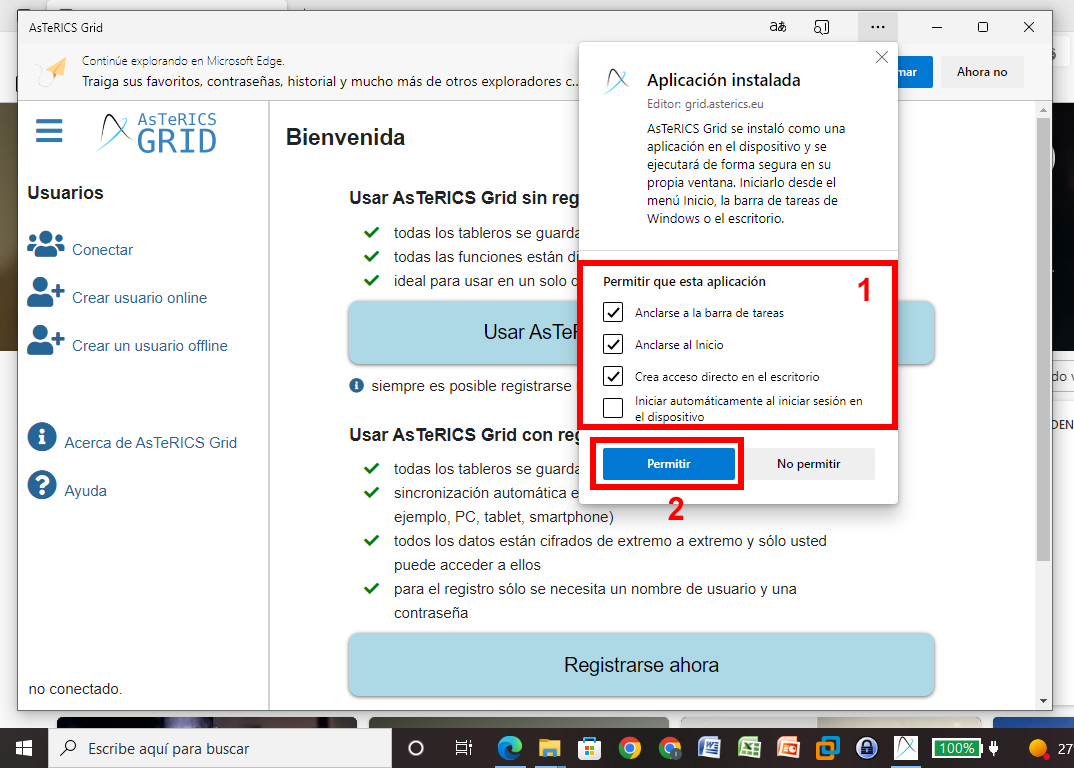
The new Asterics AAC application window will open and ask us if we want to pin it to the taskbar, startup or if we want to add a shortcut to the desktop. We check the options that interest us (1) and click on Allow (2).
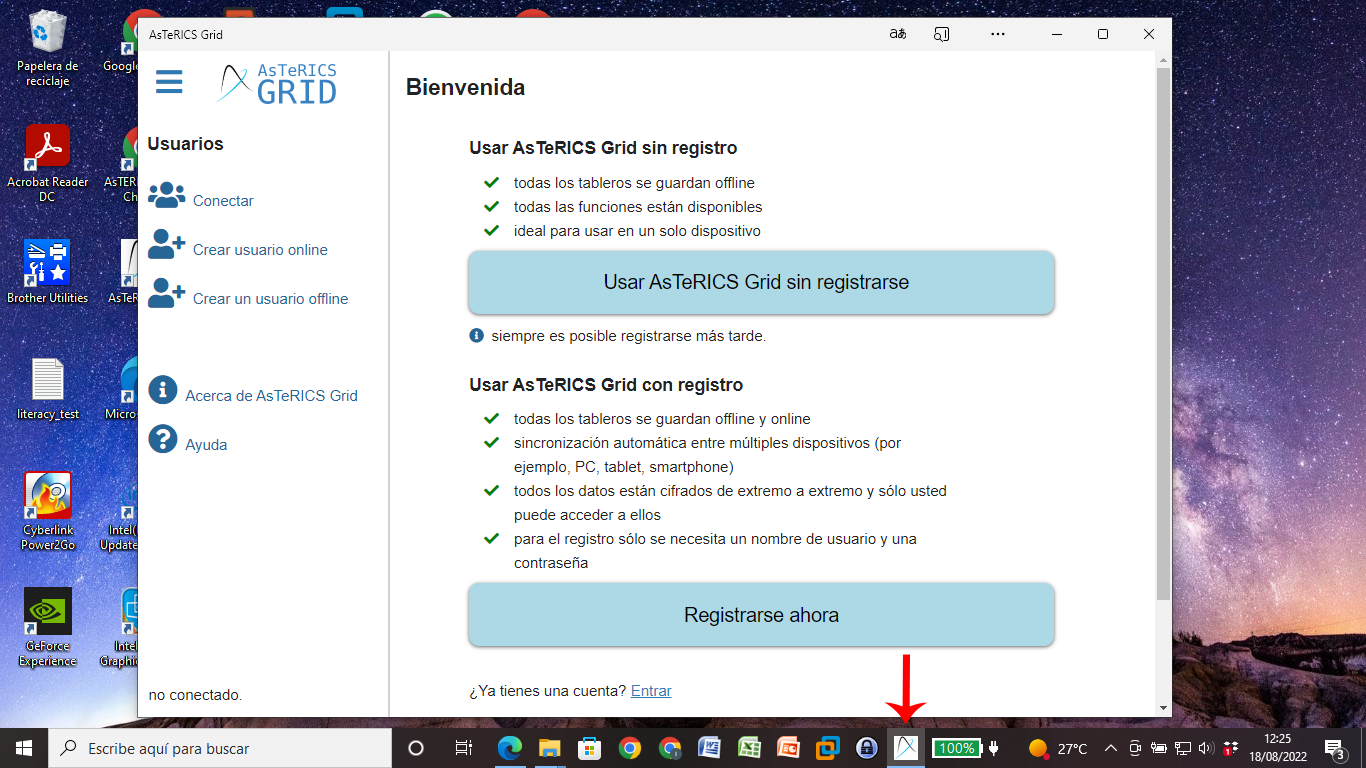
When the Pin to taskbar option is activated, an icon appears on the taskbar that will remain fixed even if the application window is closed.
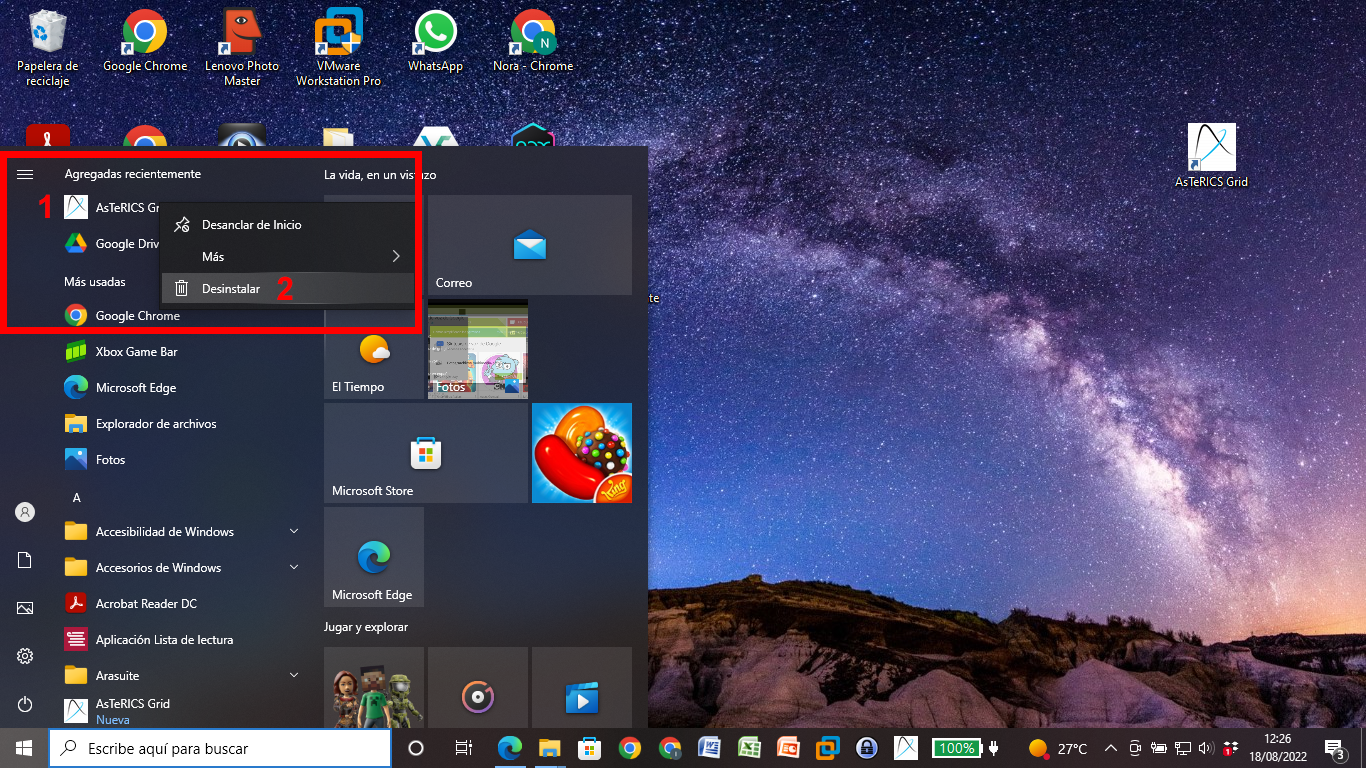
There are two options for uninstalling the Asterics AAC application. The first is to right-click on the application name in the Start menu (1) and then click Uninstall (2).
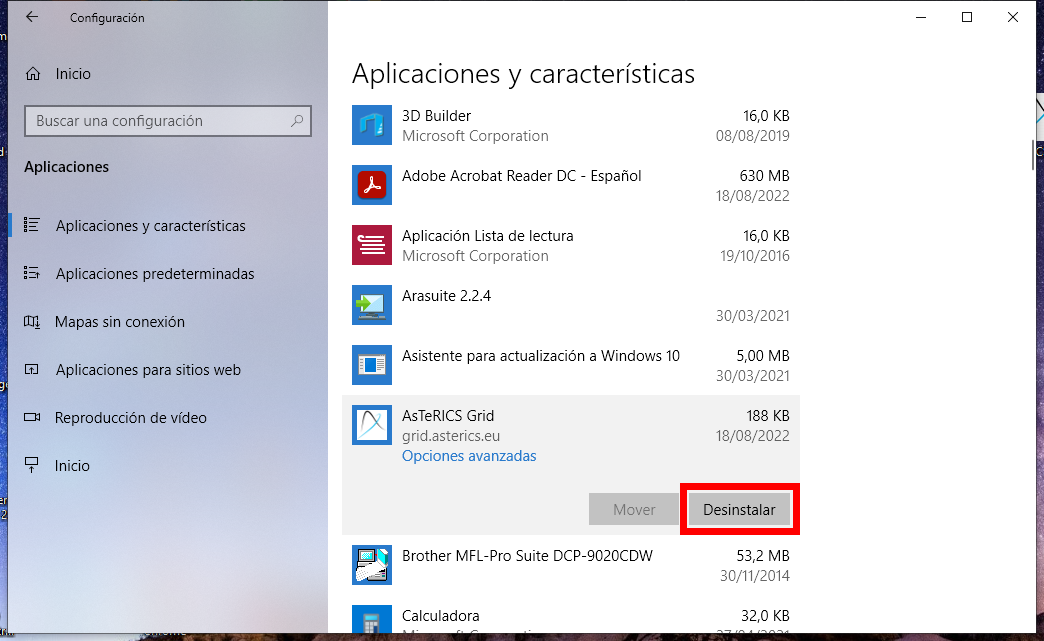
The other option is to open the Windows Applications and Features list, search for Asterics AAC in the list, click on it to display the options and click Uninstall.
By following these steps, you can install and uninstall Asterics AAC just like any other regular Windows application.
2- Installation with Google Chrome
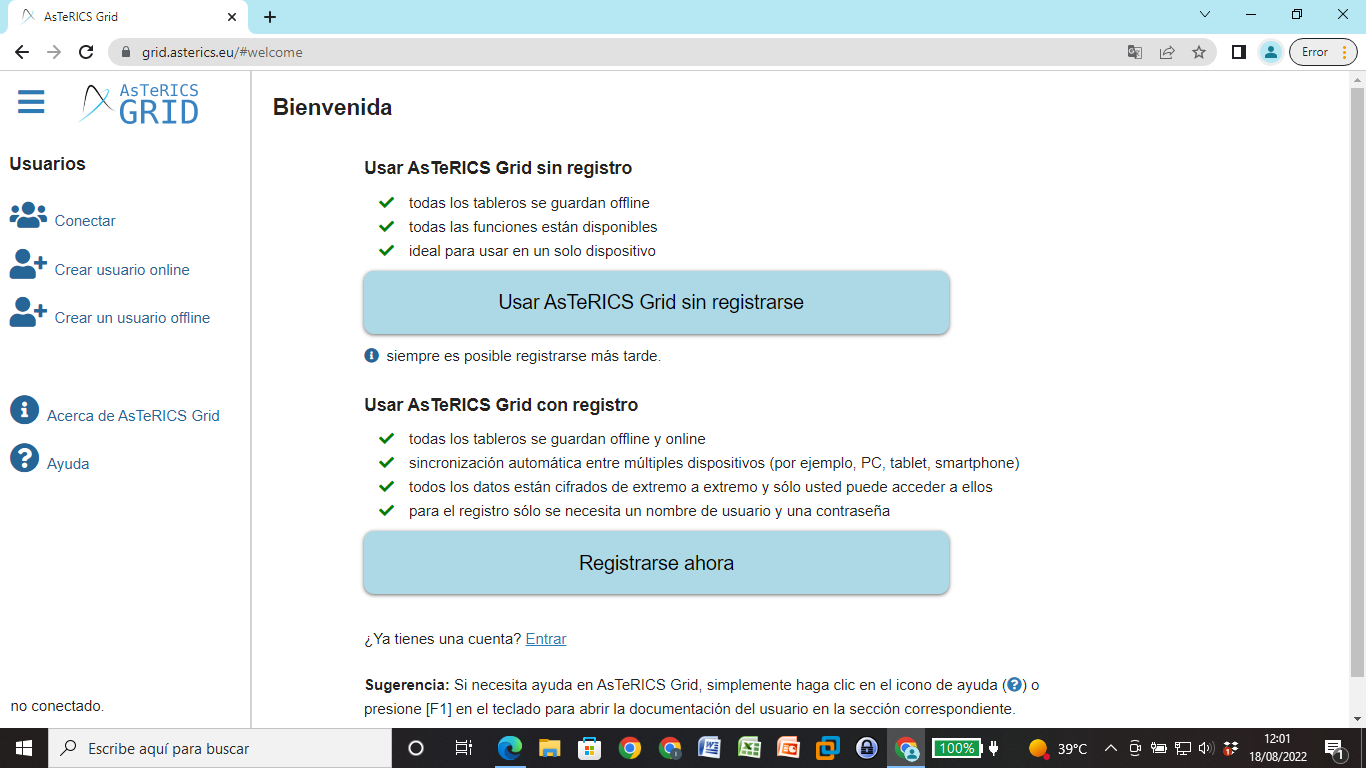
To install the Asterics AAC dynamic communicator as if it were a Windows application, open the Asterics AAC website in a new tab from the Google Chrome browser.
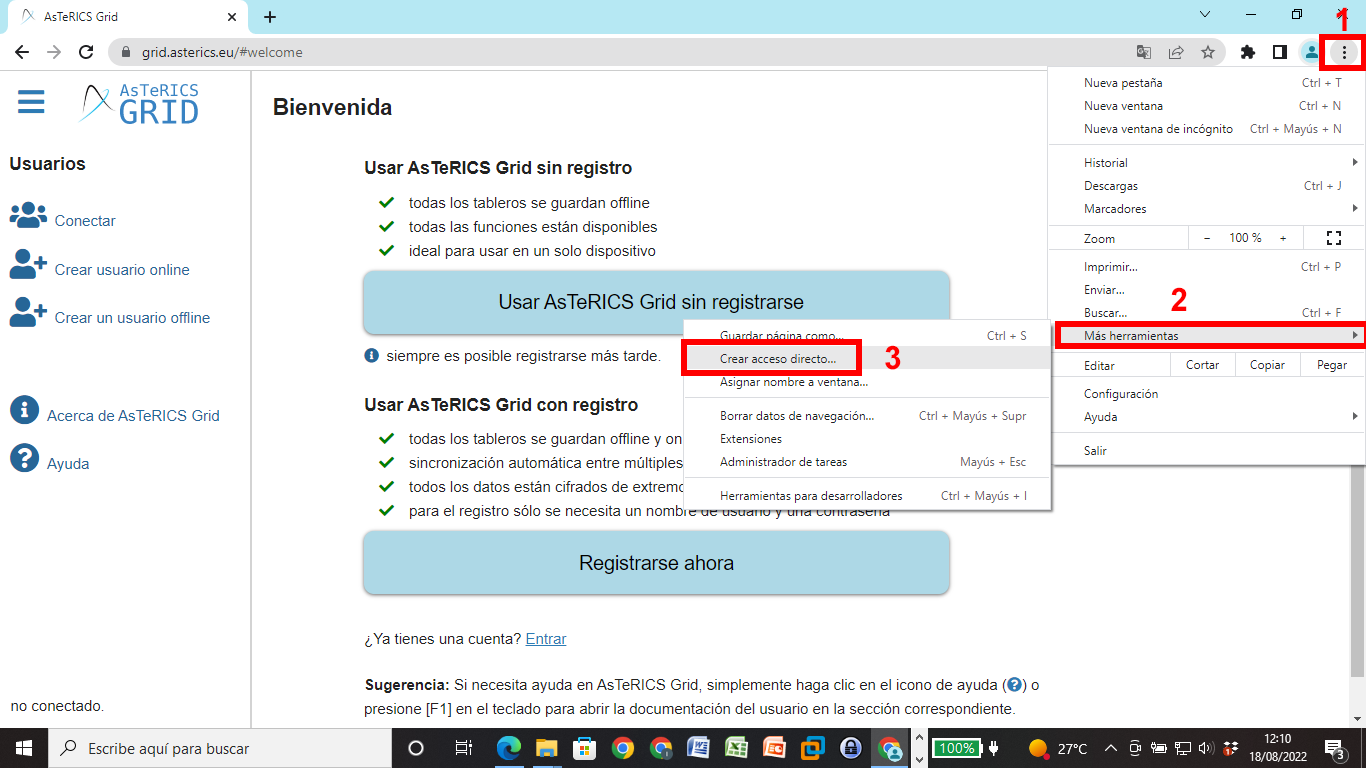
Then click on Options (1), More tools (2) and Create shortcut… (3).
Activate the Open as window option and click on Create.
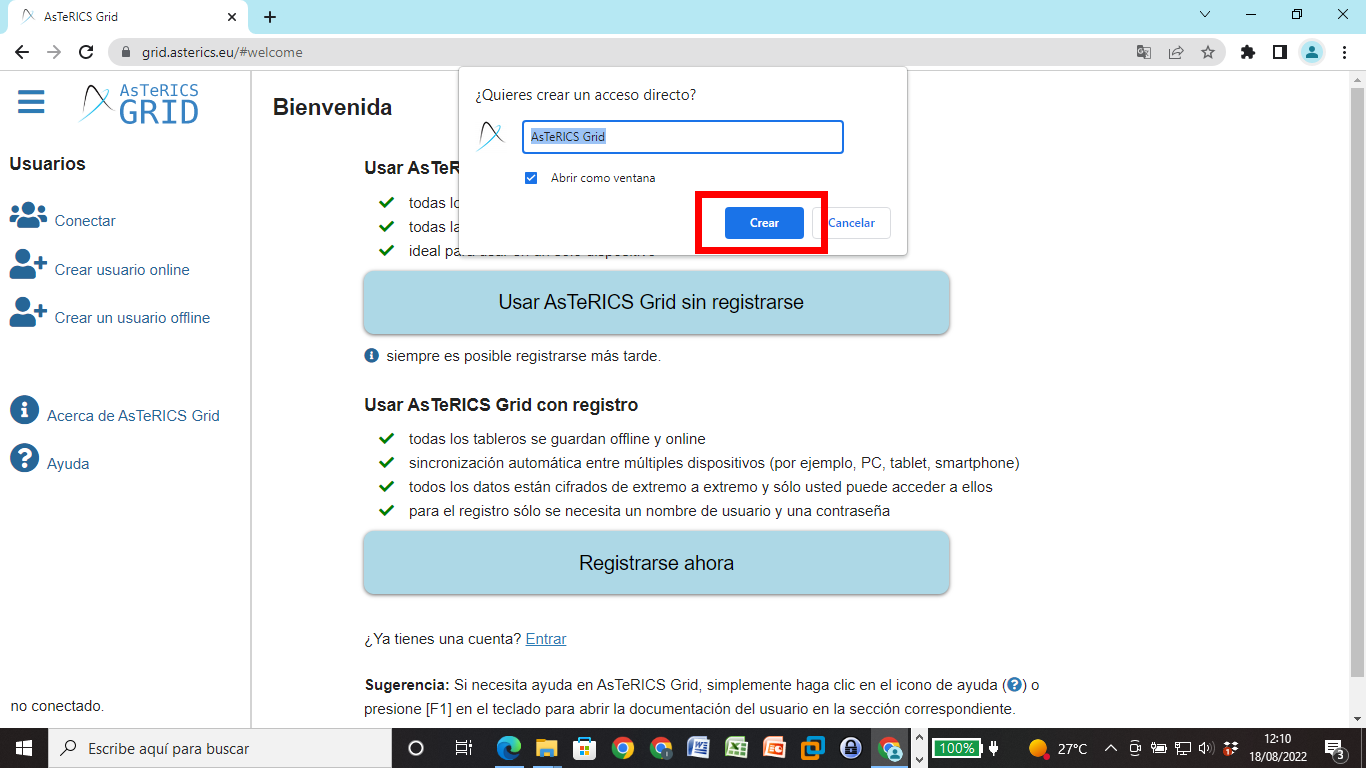
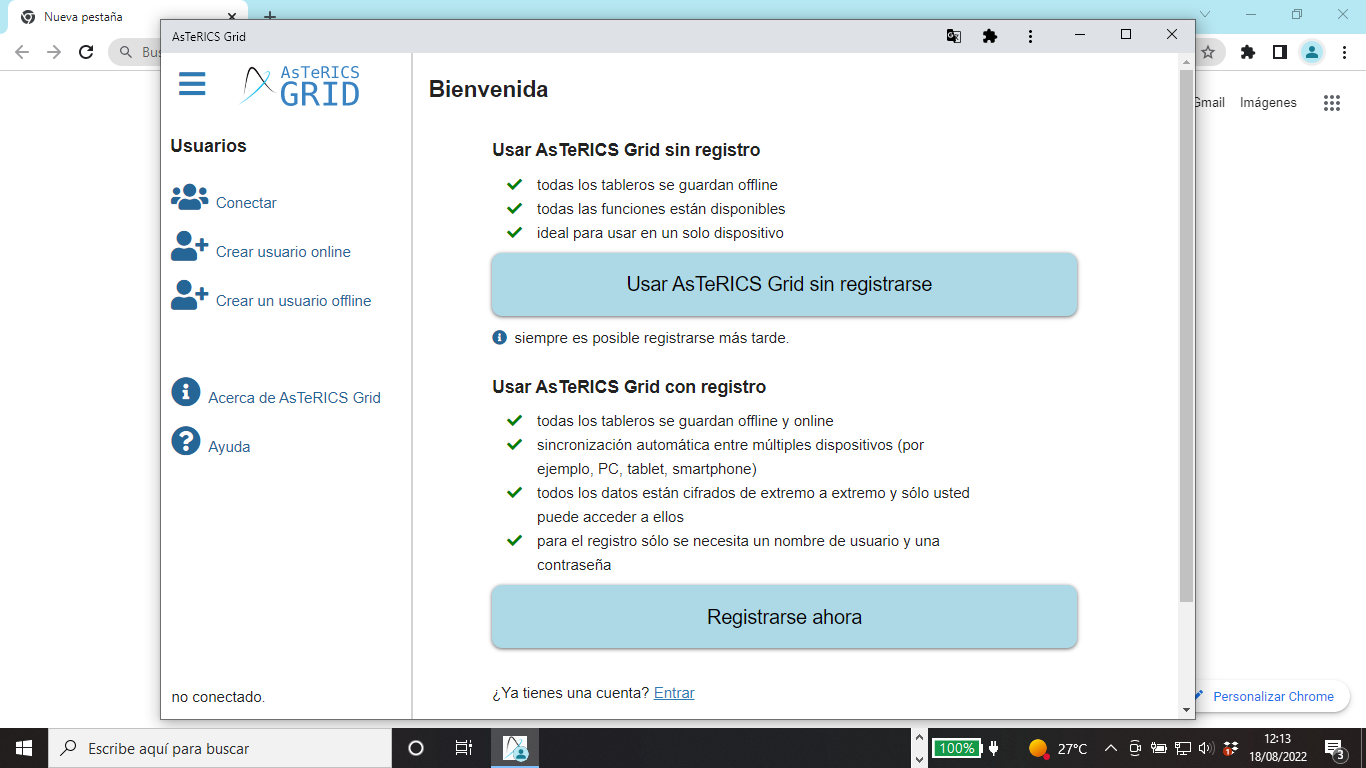
After a few seconds of waiting, a new window appears and displays the Asterics AAC icon in the taskbar.
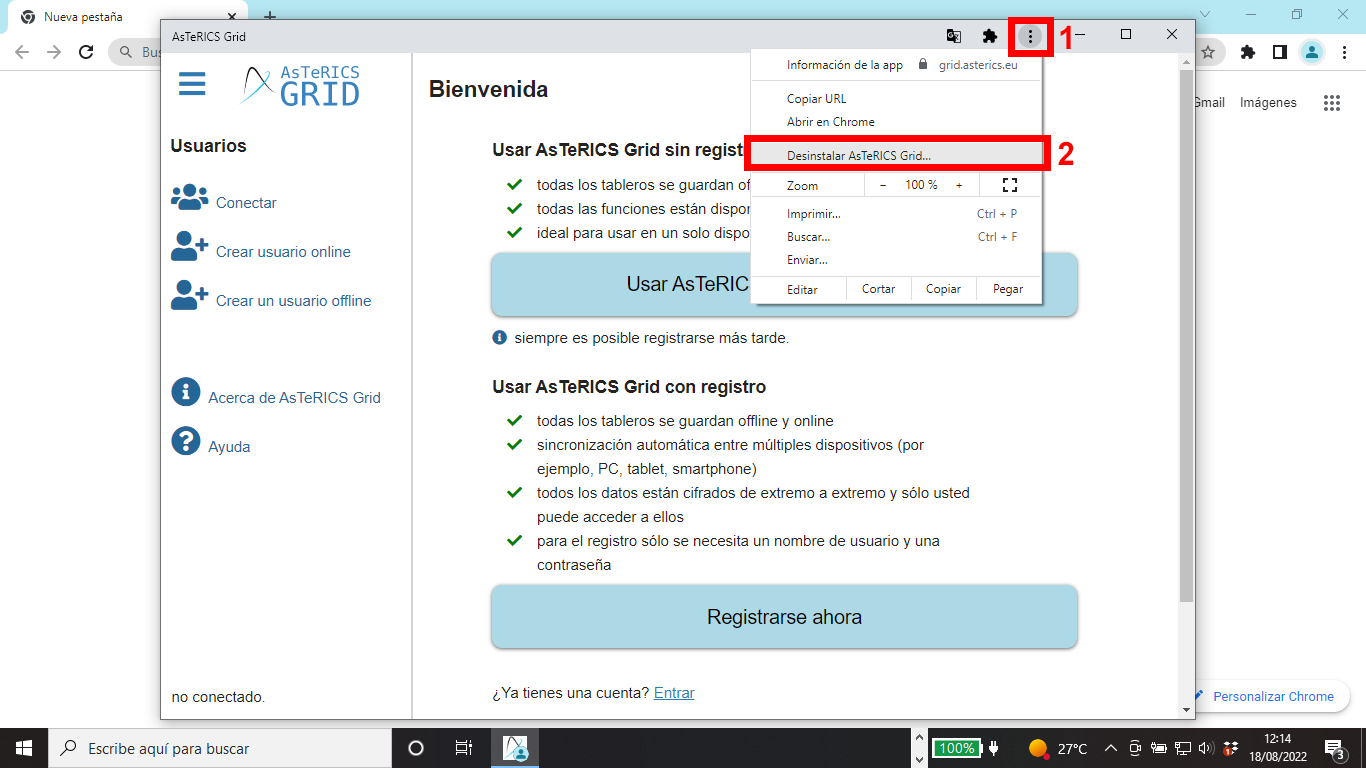
To uninstall the application, in addition to being able to do it from the Windows Applications and Features section, as we explained for Edge, we have the possibility of doing it from the application window itself by clicking on the … … (1), which appears at the top of the window, and then on Uninstall Asterics AAC. (2).
Finally, click on Remove, activating or not the option to Delete Chrome data, depending on whether or not we want to keep them.
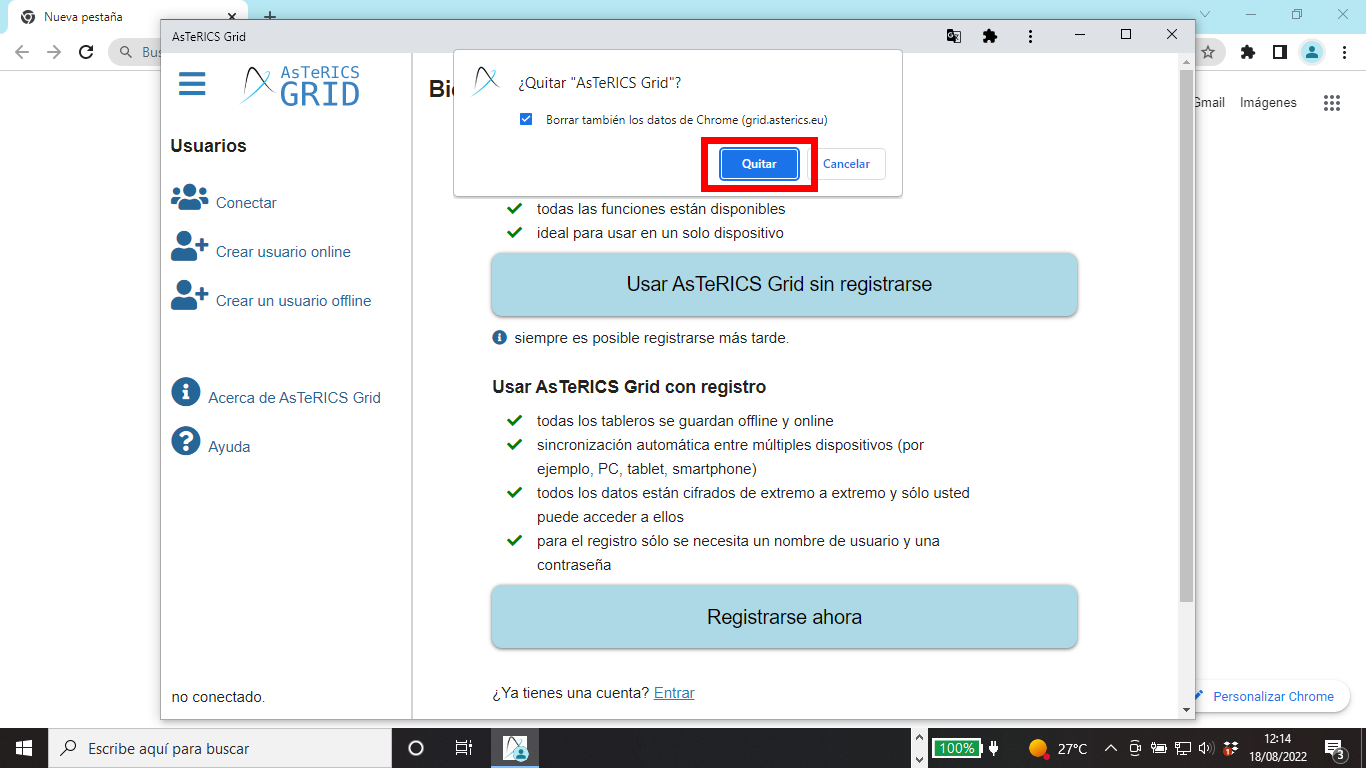
With this action, the application will be uninstalled from the system.